Showing posts with label desain. Show all posts

Monday, February 11, 2013

Menyesuaikan Cloud Label di Blogger

· 0 comments

Di dalam pengaturan pastikan untuk memilih tampilan cloud. Anda dapat mengatur opsi lain sesuai kebutuhan Anda. Lihat gambar di bawah sebagai contoh:

sekarang edit template anda dan letakkan CSS dibawah ini diatas ]]></b:skin> :


/*-----Custom Labels Cloud widget by http://logcyber.blogspot.com/----*/
.label-size{
margin:0 2px 6px 0;
padding: 3px;
text-transform: uppercase;
border: solid 1px #C6C6C6;
border-radius: 3px;
float:left;
text-decoration:none;
font-size:10px;
color:#666;
}

.label-size:hover {
border:1px solid #6BB5FF;
text-decoration: none;
-moz-transition: all 0.5s ease-out;
-o-transition: all 0.5s ease-out;
-webkit-transition: all 0.5s ease-out;
-ms-transition: all 0.5s ease-out;
transition: all 0.5s ease-out;
-moz-transform: rotate(7deg);
-o-transform: rotate(7deg);
-webkit-transform: rotate(7deg);
-ms-transform: rotate(7deg);
transform: rotate(7deg);
filter: progid:DXImageTransform.Microsoft.Matrix(
M11=0.9961946980917455, M12=-0.08715574274765817, M21=0.08715574274765817, M22=0.9961946980917455, sizingMethod='auto expand');
zoom: 1;
}

.label-size a {
text-transform: uppercase;
float:left;
text-decoration: none;
}
.label-size a:hover {
text-decoration: none;
}


Sunday, February 10, 2013

25 Menu Navigasi "Vertikal" Untuk Blogger - CSS-HTML Menu Tab

· 0 comments


Cara Tambah Sebuah Menu Navigasi Vertikal CSS Untuk Blogger?


Paste kode CSS untuk menu yang dipilih tepat di atas ]]> </ b: skin>


Untuk kode HTML bisa ada dua posisi baik sidebar kanan atau sidebar kiri. Tergantung berapa banyak kolom yang Anda miliki.

Jika Anda memiliki sidebar kanan kemudian paste kode HTML di bawah <div id='sidebar-wrapper'> atau ini
<div id='sidebar-wrapper-right'>
Jika Anda memiliki sidebar kiri kemudian paste kode HTML di bawah <div id='sidebar-wrapper-left'>

Catatan: - Karena kebanyakan template menggunakan coding yang berbeda karena itu jika Anda tidak bisa menemukan kode diatas maka jangan khawatir hanya berbagi URL blog Anda di kotak komentar dan saya akan melihat template coding dan akan memberitahu Anda langsung yang kode untuk mencari!


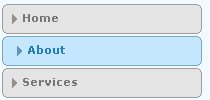
Navigation Menu #1

Navigation Menu 1 
CSS CODE:

HTML CODE:

Navigation Menu #2

Navigation Menu 2
CSS Code:

HTML Code:

Navigation Menu #3

Navigation Menu 3
CSS Code:

HTML Code:


Navigation Menu #4

Navigation Menu 4
CSS Code:

HTML Code:

Navigation Menu #5

Navigation Menu 5
CSS Code:

HTML Code:

Navigation Menu #6

Navigation Menu 6
CSS Code:

HTML Code:

Navigation Menu #7

Navigation Menu 7
CSS Code:

HTML Code:

Navigation Menu #8

Navigation Menu 8
CSS Code:

HTML Code:

Navigation Menu #9

Navigation Menu 9
CSS Code:

HTML Code:

Navigation Menu #10

Navigation Menu 10
CSS Code:

HTML Code:

Navigation Menu #11

Navigation Menu 11
CSS Code:

HTML Code:

Navigation Menu #12

Navigation-Menu-With-No-image-used
CSS Code:

HTML Code:

Navigation Menu #13

CSS Menu Tabs 13
CSS Code:

HTML Code:

Navigation Menu #14

CSS Menu Tabs 14
CSS Code:

HTML Code:

Navigation Menu #15

CSS Menu Tabs 15
CSS Code:

HTML Code:

Navigation Menu #16

CSS Menu Tabs 16
CSS Code:

HTML Code:

Navigation Menu #17

CSS Menu Tabs 17
CSS Code:

HTML Code:

Navigation Menu #18


CSS Menu Tabs 18
CSS Code:

HTML Code:

Navigation Menu #19

CSS Menu Tabs 19
CSS Code:

HTML Code:

Navigation Menu #20

CSS Menu Tabs 20
CSS Code:

HTML Code:

Navigation Menu #21

CSS Menu Tabs 21
CSS Code:

HTML Code:

Navigation Menu #22

CSS Menu Tabs 22
CSS Code:

HTML Code:


Navigation Menu #23

CSS Menu Tabs 24
CSS Code:

HTML Code:

Navigation Menu #24

 CSS Menu Tabs 25
CSS Code:

HTML Code:

Navigation Menu #25

CSS Menu Tabs 26
CSS Code:

HTML Code:


Saturday, February 9, 2013

Widget Pengatur Ukuran & Warna Text posting

· 0 comments


Masukkan kode di bawah ini diatas kode </head>

<script type="text/javascript" src="http://code.jquery.com/jquery-latest.js"></script>

lalu simpan template....

dan tambahkan ini di layout - gadget anda....

<!-- http://TheUnnecessaryWorld.co.cc -->

<style type="text/css">

/** TUW Font Color and Size Change widget begins **/

#tuw-font-change-widget {width: auto;}

#tuw-font-change-widget h2 {margin: 0 0 8px 0 !important;font: 12px
Tahoma !important;font-weight: normal !important;border: 0 !important;}

#tuw-font-change-widget ul {width: auto; overflow: hidden;margin: 0 0
20px !important;padding: 0 !important;list-style; none !important;}

#tuw-font-change-widget ul li {width: 20px !important;height: 20px
!important;overflow: hidden;margin: 0 10px 0 0 !important;padding: 2px
!important;display: block !important;float: left !important;border: 1px
solid #CCCCCC !important;}

#tuw-font-change-widget ul li a {width: 20px !important;height: 20px
!important;display: block !important;line-height: 18px
!important;text-align: center !important;color: #FFFFFF
!important;font-size: 11px !important;font-family: Tahoma
!important;text-decoration: none !important; outline: 0 !important;}

#fcw-black { background: #000000 !important; } #fcw-white { background:
#088A08 !important; } #fcw-blue { background: #0066CC !important; }
#fcw-gray { background: #666666 !important; }

#fcw-color a { text-indent: -999px !important; }

#fcw-size a { text-indent: 0 !important; background: #333333 !important; }

/** TUW Font Color and Size Change widget begins **/

</style>

<script type="text/javascript">

$(document).ready(function(){

// Change Font Color -- begins

$(" #fcw-color #fcw-black ").click(function() {

$(" .post-body ").css({ color: "#000000" });

return false;

});


$(" #fcw-color #fcw-white ").click(function() {

$(" .post-body ").css({ color: "#088A08" });

return false;

});


$(" #fcw-color #fcw-blue ").click(function() {

$(" .post-body ").css({ color: "#0066CC" });

return false;

});


$(" #fcw-color #fcw-gray ").click(function() {

$(" .post-body ").css({ color: "#666666" });

return false;

});

// Change Font Color -- ends


// Change Font Size -- begins

$(" #fcw-size #fcw-10 ").click(function() {

$(" .post-body ").css({ fontSize: "10px" });

return false;

});


$(" #fcw-size #fcw-12 ").click(function() {

$(" .post-body ").css({ fontSize: "12px" });

return false;

});


$(" #fcw-size #fcw-14 ").click(function() {

$(" .post-body ").css({ fontSize: "14px" });

return false;

});


$(" #fcw-size #fcw-16 ").click(function() {

$(" .post-body ").css({ fontSize: "16px" });

return false;

});

// Change Font Size -- ends

});

</script>

<!-- TUW Blogger Change Font color and size widget begins -->

<div id="tuw-font-change-widget">

<div class="tuw-fcw">

<h2> Ganti warna tulisan </h2>

<ul id="fcw-color">

<li> <a id="fcw-black" href="#">black</a> </li>

<li> <a id="fcw-white" href="#">green</a> </li>

<li> <a id="fcw-blue" href="#">blue</a> </li>

<li> <a id="fcw-gray" href="#">gray</a> </li>

</ul>

</div>


<div class="tuw-fcw">

<h2> Ganti ukuran tulisan </h2>

<ul id="fcw-size">

<li> <a id="fcw-10" href="#">10</a> </li>

<li> <a id="fcw-12" href="#" title="Default Size">12</a> </li>

<li> <a id="fcw-14" href="#">14</a> </li>

<li> <a id="fcw-16" href="#">16</a> </li>

</ul>

</div>

</div>

<!-- TUW Blogger Change Font color and size widget ends -->

<!-- Code ends -->

Friday, February 8, 2013

JS Page Peel Effect

· 0 comments
taruh kode dibawah diatas kode </head> :

<script type="text/javascript">
var tujuan ='http://blogger.com/'</script><script src="https://sites.google.com/site/cuerosbhelatos/pagefell.js" type="text/javascript">
</script>


demo nya di sudut kanan ya....

Macam -Macam Spoiler

· 0 comments
Berikut Macam -Macam Spoiler  Sobat, Klik dibawah ini


Contoh 1
Letakkan tulisan , artikel , gambar disini
Kodenya ;
<div style="border: 0px inset green; padding: 0px;">
<div>
<button class="button" onclick="this.parentNode.parentNode.childNodes[1].style.display = ''; this.parentNode.style.display = 'none';" title="Click to show the spoiler." type="button"><span style="color: black;"><span style="color: #DF0101; font-weight: bold;"><blink>J U D U L S P O I L E R</blink></span></span></button></div>
<div id="spoiler" style="display: none;">
<span style="color: #006600; font-weight: bold;">Letakkan tulisan , artikel , gambar disini</span></div>
</div>
Contoh 2
Kodenya ;
<div id="spoiler"><div><input style="font-size: 11px; font-weight: bold; margin: 5px; padding: 0px;" onclick="if (this.parentNode.parentNode.getElementsByTagName('div')['show'].style.display != '') { this.parentNode.parentNode.getElementsByTagName('div')['show'].style.display = ''; this.parentNode.parentNode.getElementsByTagName('div')['hide'].style.display = 'none'; this.innerText = ''; this.value = 'TUTUP'; } else { this.parentNode.parentNode.getElementsByTagName('div')['show'].style.display = 'none'; this.parentNode.parentNode.getElementsByTagName('div')['hide'].style.display = ''; this.innerText = ''; this.value = 'LIHAT LAGI'; }" name="button" type="button" value="LIHAT" /></div><div id="show" style="border: 1px solid white; display: none; margin: 5px; padding: 2px; width: 98%;"><p style="text-align: justify;">Letakkan tulisan , artikel , gambar disini</p></div><div id="hide"></div></div></div>
Contoh 3
Judul
Letakan artikel sobat disini
kodenya ;
<div>
<div style="margin: 5px;">
<div class="smallfont" style="margin-bottom: 2px;">
<i><span style="font-weight: bold;">Judul</span></i><input onclick="if (this.parentNode.parentNode.getElementsByTagName('div')[1].getElementsByTagName('div')[0].style.display != '') { this.parentNode.parentNode.getElementsByTagName('div')[1].getElementsByTagName('div')[0].style.display = ''; this.innerText = ''; this.value = 'Hide'; } else { this.parentNode.parentNode.getElementsByTagName('div')[1].getElementsByTagName('div')[0].style.display = 'none'; this.innerText = ''; this.value = 'Show'; }" style="font-size: 10px; margin: 0px; padding: 0px; width: 60px;" type="button" value="SPOILER" /></div>
<div class="alt2" style="border: 1px inset; margin: 0px; padding: 6px;">
<div style="display: none;">
Letakkan artikel sobat disini</div>
</div>
</div>
</div>
Contoh 4
Kodenya ;
<div id="spoiler"><div><input style="font-size: 11px; font-weight: bold; margin: 5px; padding: 0px;" onclick="if (this.parentNode.parentNode.getElementsByTagName('div')['show'].style.display != '') { this.parentNode.parentNode.getElementsByTagName('div')['show'].style.display = ''; this.parentNode.parentNode.getElementsByTagName('div')['hide'].style.display = 'none'; this.innerText = ''; this.value = 'TUTUP'; } else { this.parentNode.parentNode.getElementsByTagName('div')['show'].style.display = 'none'; this.parentNode.parentNode.getElementsByTagName('div')['hide'].style.display = ''; this.innerText = ''; this.value = 'LIHAT LAGI'; }" name="button" type="button" value="BUKA" /></div><div id="show" style="border: 1px solid white; display: none; margin: 5px; padding: 2px; width: 98%;"><div style="color: #000000; background: none repeat scroll 0% 0% #ebf3fb; border: 1px solid #aaccee; padding: 7px; margin: 0px;"><p style="text-align: justify;">LETAKKAN KODENYA DISINI</p></div><div id="hide"></div></div></div> 
Contoh 5
Letakkan artikel sobat disini
Kodenya ;
<div style="margin: 5px;">
<div class="bigfont" style="margin-bottom: 2px;"><input value="Open" style="margin: 0px; padding: 0px; width: 60px;" onclick="if (this.parentNode.parentNode.getElementsByTagName('div')[1].getElementsByTagName('div')[0].style.display != '') { this.parentNode.parentNode.getElementsByTagName('div')[1].getElementsByTagName('div')[0].style.display = ''; this.innerText = ''; this.value = 'Close'; } else { this.parentNode.parentNode.getElementsByTagName('div')[1].getElementsByTagName('div')[0].style.display = 'none'; this.innerText = ''; this.value = 'Open'; }" type="button">
</div><div class="alt2" style="border: 1px inset ; margin: 0px; padding: 6px;"><div style="display: none;">Letakan artikel sobat disin</div></div></div>
Selamat mencoba
Narasumber ; www.mbahgoogle.com

Mengganti background area postingan dengan gambar dan animasi

· 0 comments
Letakan Kode dibawah ini Tepat Diatas Kode ]]></b:skin>

.post{border-radius:10px;background:url(https://blogger.googleusercontent.com/img/b/R29vZ2xl/AVvXsEhyW-5a-nN6mQB6r3qvU_cAxkHJH40zpjY9j49cz3W5D8RO0nVXH6JCQBJZUNbqcyWl1_oaFvuqyhUKDFTkVBgy8-nN15nHDzE-YqnLfsRvFkn9U-S_GhIkp5gR_K3er4KfS7JYKAN2KmX2/s1600/background-judul-posting.gif) no-repeat center;background-size:cover;border:2px solid #f00;Margin-bottom:1px;
}
.post:hover{-moz-box-shadow:0 0 70px #F80505;-webkit-box-shadow:0 0 70px #F80505;box-shadow:0 0 40px #F80505;
}

Cara Membuat Blogazine Post

· 0 comments
Menurut saya Blogazine Post (unik posting), adalah inspirasi (imajinasi) seorang Penulis/Blogger dalam menyampaikan artikelnya tersebut dalam bentuk yang relatif unik (bisa dibilang berbeda-beda disetiap halaman postingan artikelnya). Untuk Blogazine Post, design/tampilan, lazimnya disesuaikan dengan Artikel yang di tulis.

Lalu apa sih tujuannya si pemilik blog menulis artikelnya dengan konsep/style Blogazine Post? Blogazine Post itu menurut saya bukanlah Trend atau sekedar Bergaya (tapi sueer lagi ngetrend). Namun Blogazine Post adalah sebuah konsep, dimana blogger/penulis tersebut menyampaikan artikelnya tersebut, layaknya seperti kita membaca dan membuka majalah (Magazine), yang mana tampilan design pada setiap halaman posting (artikel) selalu dibuat berbeda-beda dan disesuiakan dengan tema/isi artikelnya, yang tujuannya agar si pembaca merasa betah dan nyaman saat membaca setiap artikel diblog kita. ennn...lalu bagaimana membuat blogazine post (post Unik).

Berikut ini adalah Tips sederhana membuat Blogazine Post :

    Pertama-tama bersyukurlah kepada Tuhan karena kita semua masih diberi kesehatan, sehingga kita masih diberikan kesempatan untuk belajar Ngeblog.
    Belajarlah sedikit tentang CSS dan HTML
    Pahami Dulu Template Blog yang sobat pakai (CSSnya dan HTMLnya).
    Selipkan/masukkan kode CSS/HTML disetiap Postingan.

Contoh sederhana kita mulai saja dari cara merubah background dipostingan yang kita buat, masukkan kode CSS seperti ini :
1. background warna dasar
<style>
body{background:#000;
}
</style>


2. background dengan menggunakan gambar
<style>
body{background:#000 url(https://blogger.googleusercontent.com/img/b/R29vZ2xl/AVvXsEhGaY46DOE4H2Vp3BZGJWadtRtIdjKXPquVh36ac0aSZ4pkv754NxS_XxCmATfuXnKspZIQSiP7VzwWSGGgNCYTgg-F54YgFoJsXBMcSVC-yfOw1wtX3fx-r9AT6ofSMio9_SgcYSUYVY_B/s1600/tempik.gif) repeat;
}/*atau no-repeat fixed center, no-repeat center, dll (sesuaikan dengan size gambar)*/
</style>


Slide Out Sidebar Content

· 0 comments
Left Sidebar
.sidebar .widget{
border:2px inset #FF0000;
-moz-border-radius:5px;
-webkit-border-radius:5px;
border-radius:5px;
height:250px;
overflow:auto;
-o-transition:all 1s ease-out;
-moz-transition:all 1s ease-out;
-webkit-transition:all 1s ease-out;
}
.sidebar .widget:hover{-moz-box-shadow:0 0 70px #F80505;-webkit-box-shadow:0 0 70px #F80505;box-shadow:0 0 40px #F80505;
background:#000 url(http://i1206.photobucket.com/albums/bb455/binkbenk/blogger-2.png)no-repeat center;
font-size:large;
width:500px;
margin-left:25px;
border:4px dotted #FF0000;
-moz-border-radius:10px;
-webkit-border-radius:10px;
border-radius: 10px;
}


Right Sidebar


.sidebar .widget{
border:2px inset #FF0000;
-moz-border-radius:5px;
-webkit-border-radius:5px;
border-radius:5px;
height:250px;
overflow:auto;
-o-transition:all 1s ease-out;
-moz-transition:all 1s ease-out;
-webkit-transition:all 1s ease-out;
}
.sidebar .widget:hover{-moz-box-shadow:0 0 70px #F80505;-webkit-box-shadow:0 0 70px #F80505;box-shadow:0 0 40px #F80505;
background:#000 url(http://i1206.photobucket.com/albums/bb455/binkbenk/blogger-2.png)no-repeat center;
font-size:large;
width:500px;
margin-left:-225px;
border:4px dotted #FF0000;
-moz-border-radius:10px;
-webkit-border-radius:10px;
border-radius: 10px;
}


Langkah pemasangannya :

  1. Login ke blog Sobat
  2. Masuk Rancangan Pilh Edit HTML
  3. Copy kode diatas dan pastekan diatas kode  ]]></b:skin>

Sunday, February 3, 2013

Efek Thread Comment Bertingkat Hanya dengan CSS

· 0 comments
salin kode ini dan letakkan di atas kode ]]></b:skin> atau </style>:


/* Efek thread-comment bertingkat hanya dengan CSS
* Level tingkatan dibuat dengan cara menuliskan margin-left dengan nilai yang berbeda
*/

.comments .thread-toggle {
margin-bottom:10px;
}


.comments .comment-thread.inline-thread .comment .comment-block {
margin-left:52px;
}


.comments .comment-thread.inline-thread .comment {
margin:0px 0px 5px 30%; /* Level 6+ */
background-color:#222;
border:1px solid #333;
padding:10px 15px;
color:#ccc;
}


.comment .comment-thread.inline-thread .comment:nth-child(6) {margin:0px 0px 5px 25%;} /* Level 6 */
.comment .comment-thread.inline-thread .comment:nth-child(5) {margin:0px 0px 5px 20%;} /* Level 5 */
.comment .comment-thread.inline-thread .comment:nth-child(4) {margin:0px 0px 5px 15%;} /* Level 4 */
.comment .comment-thread.inline-thread .comment:nth-child(3) {margin:0px 0px 5px 10%;} /* Level 3 */
.comment .comment-thread.inline-thread .comment:nth-child(2) {margin:0px 0px 5px 5%; } /* Level 2 */
.comment .comment-thread.inline-thread .comment:nth-child(1) {margin:0px 0px 5px 0%; } /* Level 1 */
Klik Simpan Template.


Wednesday, January 30, 2013

Styling Striped TABLE Using Only CSS

· 0 comments


CSS:

    /* Very Best Table Styling */
ol{margin:1em 1em 1em;padding:1em 1em 1em;}
table
{text-align:left;font-size:13px;font-family:Monaco,Monospace !important;
color:#CFDBEC;text-shadow:1px 2px 1px #000, 0px -1px 2px #000, 1px 1px 2px #000;
background-color:#2f2f2f;
border-collapse:collapse;
width:100%;
border:none;
}
thead,thead th
{color:#0075B5;font-size:15px;font-family:dungeon;font-weight:bold;line-height:28px;text-align:left;padding:1em 1em 1em;background:#0f0f0f;
}
td, th
{padding:1em 1em 1em;
}
* html tr.odd td, tbody tr.odd td, #middle
{
background:rgba(0, 0, 0, 0.15);
}
tfoot td,tfoot tr
{background:rgba(0, 0, 0, 0.15);
padding-bottom:1.5em;
}
tfoot
{background:rgba(0, 0, 0, 0.5);color:#FFDEAD;
}

HTML:

    <table><col> <col id="middle"> <col> <thead>
<tr><th>Ingredients</th><th>Serves 12</th><th>Serves 24</th></tr>
</thead> <tfoot>
<tr><td colspan="3"><ol>
<li>Combine milk and spices including vanilla bean in a heavy saucepan and let them infuse over lowest possible heat for 5 minutes. Meanwhile, combine yolks and sugar in a large bowl and whisk until mixed.</li>
<li>Bring milk to a boil and gradually whisk it into the yolk mixture. Return the mixture to the saucepan. Cook over medium heat, stirring steadily with a wooden spoon, for 2 to 3 minutes, or until foam subsides and mixture thickens to consistency of heavy cream. (Mixture should thickly coat the back of a wooden spoon.) Do not boil, or mixture will curdle.</li>
<li>Strain mixture into a large bowl and let cool to room temperature. Stir in rum, brandy, half-and-half, vanilla and nutmeg.</li>
<li>Refrigerate eggnog for at least 2 hours, preferably overnight. Just before serving, dust top of eggnog with additional nutmeg.</li>
</ol>
</td></tr>
</tfoot> <tbody>
<tr><td>milk</td><td>1 quart</td><td>2 quart</td></tr>
<tr class="odd"><td>cinnamon sticks</td><td>2</td><td>1</td></tr>
<tr><td>vanilla bean, split</td><td>1</td><td>2</td></tr>
<tr class="odd"><td>cloves</td><td>5</td><td>10</td></tr>
<tr><td>mace</td><td>10 blades</td><td>20 blades</td></tr>
<tr class="odd"><td>egg yolks</td><td>12</td><td>24</td></tr>
<tr><td>cups sugar</td><td>1 ½ cups</td><td>3 cups</td></tr>
<tr class="odd"><td>dark rum</td><td>1 ½ cups</td><td>3 cups</td></tr>
<tr><td>brandy</td><td>1 ½ cups</td><td>3 cups</td></tr>
<tr class="odd"><td>vanilla</td><td>1 tbsp</td><td>2 tbsp</td></tr>
<tr><td>half-and-half or light cream</td><td>1 quart</td><td>2 quart</td></tr>
<tr class="odd"><td>Freshly grated nutmeg to taste</td><td></td><td></td></tr>
</tbody> </table>

Tuesday, January 29, 2013

Cloud Zoom Is A Popular Fly-Out jQuery

· 0 comments


CSS:
    <style type="text/css">
.section {min-width:100%;max-width:100%;
_width:100%;}

.cloudzoom-lens-thick {border:5px solid #eee;width:125px;height:125px;border-radius:100%;-moz-border-radius:100%;-webkit-border-radius:100%;box-shadow:-0px -0px 5px rgba(0,0,0,0.50);-moz-box-shadow:-0px -0px 5px rgba(0,0,0,0.50);-webkit-box-shadow:-0px -0px 5px rgba(0,0,0,0.50);cursor:crosshair;}

.cloudzoom-zoom-thick {border:7px solid #fff;border-radius:5px;-moz-border-radius:5px;-webkit-border-radius:5px;box-shadow:-0px -0px 10px rgba(0,0,0,0.20);-moz-box-shadow:-0px -0px 10px rgba(0,0,0,0.20);-webkit-box-shadow:-0px -0px 10px rgba(0,0,0,0.20);}

.cloudzoom-zoom-inside {cursor:pointer;}

.image-wrap {border:1px solid #eee;display:inline-block;line-height:0;margin-top:20px;margin-bottom:10px;}

#fullsize img {border:1px solid #eee;}

.left-half {
width:50%;
float:left;
padding:0;
display:inline-block;
}

.left-in {
margin-left:5px;
margin-right:5px;
}
.right-in {
margin-right:5px;
margin-left:5px;
}
.right-half {
width:50%;
float:right;
padding:0;
display:inline-block;
}
.middle-in {
margin-left:5px;
margin-right:5px;
}

a.starzoom-gallery img {
border:1px solid #ccc;
margin-right:5px;
width:70px;
}

a.starzoom-gallery img:hover {
border:1px solid #f60;
}


.starzoom {
cursor:pointer;
cursor:-moz-zoom-in;
cursor:-webkit-zoom-in;
background-image:url('http://www.starplugins.com/sites/starplugins/images/viewport-bg.png');
}

#ipadzoom.starzoom {
background:none;
}


fieldset {
border:1px solid #ccc;
border-radius: 5px;
margin-bottom:20px;
}


#addthis-wrap {
position:absolute;
top:-41px;
right:190px;
width:140px;
height:32px;
padding:3px;
}


.highlight {
border-radius:5px;
-moz-box-shadow: 0px 0px 8px rgba(0,0,0,0.5);
-webkit-box-shadow: 0px 0px 8px rgba(0,0,0,0.5);
box-shadow: 0px 0px 8px rgba(0,0,0,0.5);
background-color:#f60;
color:#fff;
padding:15px 15px 15px 15px;
font-size:16px;
}


/*************** TABS ******************/

/* root element for tabs */
ul.tabs {
list-style:none;
margin:0 !important;
padding:0;
border-bottom:1px solid #666;
height:30px;
}

/* single tab */
ul.tabs li {
float:left;
text-indent:0;
padding:0;
margin:0 !important;
list-style-image:none !important;
}

/* link inside the tab. uses a background image */
ul.tabs a {
background: url(http://www.starplugins.com/sites/starplugins/images/tabs.png) no-repeat -420px 0;

font-size:11px;
display:block;
height: 30px;
line-height:30px;
width: 134px;
text-align:center;
text-decoration:none;
color:#333;
padding:0px;
margin:0px;
position:relative;
top:1px;
}

ul.tabs a:active {
outline:none;
}

/* when mouse enters the tab move the background image */
ul.tabs a:hover {
background-position: -420px -31px;
color:#fff;
}

/* active tab uses a class name "current". its highlight is also done by moving the background image. */
ul.tabs a.current, ul.tabs a.current:hover, ul.tabs li.current a {
background-position: -420px -62px;
cursor:default !important;
color:#000 !important;
}

/* Different widths for tabs: use a class name: w1, w2, w3 or w2 */


/* width 1 */
ul.tabs a.s { background-position: -553px 0; width:81px; }
ul.tabs a.s:hover { background-position: -553px -31px; }
ul.tabs a.s.current { background-position: -553px -62px; }

/* width 2 */
ul.tabs a.l { background-position: -248px -0px; width:174px; }
ul.tabs a.l:hover { background-position: -248px -31px; }
ul.tabs a.l.current { background-position: -248px -62px; }


/* width 3 */
ul.tabs a.xl { background-position: 0 -0px; width:248px; }
ul.tabs a.xl:hover { background-position: 0 -31px; }
ul.tabs a.xl.current { background-position: 0 -62px; }


/* initially all panes are hidden */
.panes .pane {
display:none;
}
</style>

<link href="http://www.starplugins.com/sites/starplugins/js/prettify/prettify.css" type="text/css" rel="stylesheet" />

<link href="http://www.starplugins.com/sites/starplugins/js/starzoom.css" type="text/css" rel="stylesheet" />

<link href="http://www.starplugins.com/sites/starplugins/js/jetzoom/jetzoom.css" type="text/css" rel="stylesheet" />

<link href="http://www.starplugins.com/sites/starplugins/js/cloudzoom/cloudzoom.css?v=1" type="text/css" rel="stylesheet" />

<link rel="stylesheet" href="http://www.starplugins.com/sites/starplugins/js/fancy/jquery.fancybox.css??v=1" type="text/css" media="screen" />

SCRIPT:

    <script type="text/javascript" src="http://code.jquery.com/jquery-1.8.3.min.js"></script>

<!-- UI Tools: Tabs, Tooltip, Scrollable and Overlay (4.45 Kb) -->
<script src="http://cdn.jquerytools.org/1.2.7/tiny/jquery.tools.min.js"></script>

<script type="text/javascript" src="http://www.starplugins.com/sites/starplugins/js/jquery.mousewheel.js"></script>

<script type="text/javascript" src="http://www.starplugins.com/sites/starplugins/js/starzoom.js?v=1"></script>

<script type="text/javascript" src="http://www.starplugins.com/sites/starplugins/js/jetzoom/jetzoom.js?v=3"></script>

<script type="text/javascript" src="http://www.starplugins.com/sites/starplugins/js/cloudzoom/cloudzoom.js?v=20"></script>

<script type="text/javascript" src="http://www.starplugins.com/sites/starplugins/js/prettify/prettify.js"></script>

<script type="text/javascript" src="http://www.starplugins.com/sites/starplugins/js/fancy/jquery.fancybox.js?v=1"></script>

<script type="text/javascript">
$(function(){
$('#zoom1').bind('click',function(){
var jetZoom = $(this).data('JetZoom');
$.fancybox.open(jetZoom.getGalleryList());
return false;
})
})
</script>

<script type="text/javascript">
$(function(){
$('pre').addClass('prettyprint'); // Add pretty print to pre elements.
prettyPrint();
// setup ul.tabs to work as tabs for each div directly under div.panes
$("ul.tabs").tabs("div.panes > div");
});
StarZoom.quickStart();
JetZoom.quickStart();
CloudZoom.quickStart();
</script>

HTML:

<br />
<div class="left-half">
<div class="left-in">
<div style="text-align: center;">
<div style="border: 1px solid #ccc; display: inline-block; line-height: 0;">
<span class="cloudzoom-caption" id="cap1">.</span>

<img alt="Cloud Zoom small image" class="cloudzoom" data-cloudzoom="{
&quot;zoomImage&quot;:&quot;http://www.starplugins.com/sites/starplugins/images/jetzoom/large/image1.jpg&quot;,
&quot;zoomMatchSize&quot;:true,
&quot;tintColor&quot;:&quot;#000&quot;,
&quot;tintOpacity&quot;:0.25,
&quot;captionPosition&quot;:&quot;bottom&quot;
}" id="zoom1" src="http://www.starplugins.com/sites/starplugins/images/jetzoom/small/image1.jpg" title="Cloud Zoom has many configuration options to match the look and feel of your website" />
<br />
<div class="cloudzoom-caption">
<br /></div>
</div>
<div style="margin-top: 10px;">
<a class="thumb-link" href="http://www.starplugins.com/sites/starplugins/images/jetzoom/large/image1.jpg">
<img alt="Jet Zoom thumb image" class="cloudzoom-gallery" data-cloudzoom="{
&quot;useZoom&quot;:&quot;#zoom1&quot;,
&quot;image&quot;:&quot;http://www.starplugins.com/sites/starplugins/images/jetzoom/small/image1.jpg&quot;,
&quot;zoomImage&quot;:&quot;http://www.starplugins.com/sites/starplugins/images/jetzoom/large/image1.jpg&quot;}" src="http://www.starplugins.com/sites/starplugins/images/jetzoom/small/image1.jpg" title="Cloud Zoom has many configuration options to match the look and feel of your website" width="64" />
</a>

<a class="thumb-link" href="http://www.starplugins.com/sites/starplugins/images/jetzoom/large/image2.jpg">
<img alt="Jet Zoom thumb image" class="cloudzoom-gallery" data-cloudzoom="{
&quot;useZoom&quot;:&quot;#zoom1&quot;,
&quot;image&quot;:&quot;http://www.starplugins.com/sites/starplugins/images/jetzoom/small/image2.jpg&quot;,
&quot;zoomImage&quot;:&quot;http://www.starplugins.com/sites/starplugins/images/jetzoom/large/image2.jpg&quot;}" src="http://www.starplugins.com/sites/starplugins/images/jetzoom/small/image2.jpg" title="Works great with iPad and other touch-enabled devices" width="64" />
</a>

<a class="thumb-link" href="http://www.starplugins.com/sites/starplugins/images/jetzoom/large/image3.jpg">
<img alt="Jet Zoom thumb image" class="cloudzoom-gallery" data-cloudzoom="{
&quot;useZoom&quot;:&quot;#zoom1&quot;,
&quot;image&quot;:&quot;http://www.starplugins.com/sites/starplugins/images/jetzoom/small/image3.jpg&quot;
}" src="http://www.starplugins.com/sites/starplugins/images/jetzoom/small/image3.jpg" title="Regular free updates and new features with technical support" width="64" />
</a>
</div>
</div>
</div>
</div>
<br />
<div class="left-in">
<h2>
Gallery Elements</h2>
<br />
<div style="text-align: right;">
<div class="image-wrap">
<img alt="Cloud Zoom small image" class="cloudzoom" data-cloudzoom="
zoomImage: 'http://www.starplugins.com/sites/starplugins/images/jetzoom/large/image1.jpg',
zoomPosition: 12,
zoomSizeMode: 'image',
zoomOffsetX: -15" id="zoom1" src="http://www.starplugins.com/sites/starplugins/images/jetzoom/small/image1.jpg" />

</div>
</div>
</div>
<br />
<div class="section">
<div class="left-half">
<div class="left-in">
<h2>
Lens and Zoom CSS</h2>
<br />
<div style="text-align: center;">
<div class="image-wrap">
<img alt="Jet Zoom small image" class="cloudzoom" data-cloudzoom="{
&quot;zoomImage&quot;:&quot;http://www.starplugins.com/sites/starplugins/images/jetzoom/large/image4.jpg&quot;,
&quot;lensClass&quot;:&quot;cloudzoom-lens-thick&quot;,
&quot;zoomClass&quot;:&quot;cloudzoom-zoom-thick&quot;
}" src="http://www.starplugins.com/sites/starplugins/images/jetzoom/small/image4.jpg" />
</div>
</div>
</div>
</div>
<div class="right-half">
<div class="right-in">
<h2>
Single Image Mode</h2>
<br />
<div class="image-wrap">
<img alt="Jet Zoom small image" class="cloudzoom" data-cloudzoom="zoomPosition:12, zoomOffsetX:0, uriEscapeMethod:'encodeURI'" src="http://www.starplugins.com/sites/starplugins/images/jetzoom/large/image1.jpg" width="300" />
</div>
</div>
</div>
</div>
=========
<br />
<div class="section">
<div class="left-half">
<div class="left-in">
<h2>
Tints</h2>
<br />
<div style="text-align: center;">
<div class="image-wrap">
<img alt="Cloud Zoom small image" class="cloudzoom" data-cloudzoom="{
&quot;zoomImage&quot;:&quot;http://www.starplugins.com/sites/starplugins/images/jetzoom/large/image6.jpg&quot;,
&quot;tintColor&quot;:&quot;#f90&quot;
}" src="http://www.starplugins.com/sites/starplugins/images/jetzoom/small/image6.jpg" />
</div>
</div>
</div>
</div>
<div class="right-half">
<div class="right-in">
<h2>
Inner Zoom</h2>
<br />
<div style="text-align: center;">
<div class="image-wrap">
<img alt="Jet Zoom small image" class="cloudzoom" data-cloudzoom="{
&quot;zoomImage&quot;:&quot;http://www.starplugins.com/sites/starplugins/images/jetzoom/large/image7.jpg&quot;,
&quot;zoomPosition&quot;:&quot;inside&quot;
}" src="http://www.starplugins.com/sites/starplugins/images/jetzoom/small/image7.jpg" />
</div>
</div>
</div>
</div>
</div>
<div class="section">
<div class="left-half">
<div class="left-in">
<h2>
Captions</h2>
<br />
<div style="text-align: center;">
<div class="image-wrap">
<img alt="Jet Zoom small image" class="cloudzoom" data-cloudzoom="{
&quot;zoomImage&quot;:&quot;http://www.starplugins.com/sites/starplugins/images/jetzoom/large/image6.jpg&quot;,
&quot;captionSource&quot;:&quot;#caption1&quot;,
&quot;captionType&quot;:&quot;html&quot;
}" id="zoom2" src="http://www.starplugins.com/sites/starplugins/images/jetzoom/small/image6.jpg" />
</div>
<div class="cloudzoom-caption" id="caption1">
This is an <span style="color: #ffcc00; font-weight: bold;">HTML</span> type caption. You can include <i>any</i> type of content in here!</div>
</div>
</div>
</div>
<div class="right-half">
<div class="right-in">
<h2>
Position</h2>
<br />
<div style="text-align: center;">
<div class="image-wrap">
<img alt="Jet Zoom small image" class="cloudzoom" data-cloudzoom="{
&quot;zoomImage&quot;:&quot;http://www.starplugins.com/sites/starplugins/images/jetzoom/large/image7.jpg&quot;,
&quot;zoomPosition&quot;:&quot;#zoom2&quot;,
&quot;captionPosition&quot;:&quot;bottom&quot;

}" src="http://www.starplugins.com/sites/starplugins/images/jetzoom/small/image7.jpg" title="This position was defined by a selector." />
</div>
</div>
</div>
</div>
</div>
<br />
<div class="section">
<div class="left-half">
<div class="left-in">
<h2>
Modal Pop-up Window (e.g. Fancy Box)</h2>
<br />
<div class="right-in">
<div style="text-align: center;">
<div class="image-wrap">
<img alt="Cloud Zoom small image" class="cloudzoom" data-cloudzoom="{
&quot;zoomImage&quot;:&quot;http://www.starplugins.com/sites/starplugins/images/jetzoom/large/image9.jpg&quot;,
&quot;zoomPosition&quot;:&quot;inside&quot;
}" id="myFancyCloudZoom" src="http://www.starplugins.com/sites/starplugins/images/jetzoom/small/image9.jpg" title="The image title will also be passed to Fancy Box" />
</div>
</div>
</div>
</div>
</div>
</div>
=========
<br />
<div class="section" style="width: 100%;">
<!-- div class="left-half" -->
<br />
<div class="middle-in">
<h2>
Cloud Zoom in Tabbed Content</h2>
<br />
<div class="panes">
<div style="width: 100%;">
<div class="image-wrap">
<img alt="Cloud Zoom small image" class="cloudzoom" data-cloudzoom="
zoomImage:'http://www.starplugins.com/sites/starplugins/images/jetzoom/large/image1.jpg',zoomSizeMode: 'image'" src="http://www.starplugins.com/sites/starplugins/images/jetzoom/small/image1.jpg" />
</div>
</div>
<div>
<br />
<div class="image-wrap">
<img alt="Cloud Zoom small image" class="cloudzoom" data-cloudzoom="
zoomImage:'http://www.starplugins.com/sites/starplugins/images/jetzoom/large/image2.jpg', zoomPosition:4" src="http://www.starplugins.com/sites/starplugins/images/jetzoom/small/image2.jpg" width="150" />
</div>
<div class="image-wrap">
<img alt="Cloud Zoom small image" class="cloudzoom" data-cloudzoom="
zoomImage:'http://www.starplugins.com/sites/starplugins/images/jetzoom/large/image3.jpg', zoomPosition:4" src="http://www.starplugins.com/sites/starplugins/images/jetzoom/small/image3.jpg" width="150" />
</div>
</div>
<div>
<div style="width: 100%;">
<br /></div>
<div class="image-wrap">
<img alt="Cloud Zoom small image" class="cloudzoom" data-cloudzoom="
zoomImage:'http://www.starplugins.com/sites/starplugins/images/jetzoom/large/image4.jpg',
zoomPosition: 'inside', zoomFlyOut:false" src="http://www.starplugins.com/sites/starplugins/images/jetzoom/small/image4.jpg" />
</div>
</div>
</div>
</div>
</div>
<br />
<div class="section" id="fullsize">
<div class="left-half">
<div class="left-in">
<h2>
Full Size Zoom</h2>
<br />
<img class="cloudzoom" data-cloudzoom="{&quot;zoomImage&quot;:&quot;http://www.starplugins.com/sites/starplugins/images/jetzoom/small/image1.jpg&quot;, &quot;zoomSizeMode&quot;:&quot;full&quot;, &quot;zoomPosition&quot;:&quot;#fullsize-pos&quot;, &quot;zoomFlyOut&quot;:false}" src="http://www.starplugins.com/sites/starplugins/images/jetzoom/size81/image1.jpg" />

<img class="cloudzoom" data-cloudzoom="{&quot;zoomImage&quot;:&quot;http://www.starplugins.com/sites/starplugins/images/jetzoom/small/image2.jpg&quot;, &quot;zoomSizeMode&quot;:&quot;full&quot;, &quot;zoomPosition&quot;:&quot;#fullsize-pos&quot;, &quot;zoomFlyOut&quot;:false}" src="http://www.starplugins.com/sites/starplugins/images/jetzoom/size81/image2.jpg" />

<img class="cloudzoom" data-cloudzoom="{&quot;zoomImage&quot;:&quot;http://www.starplugins.com/sites/starplugins/images/jetzoom/small/image3.jpg&quot;, &quot;zoomSizeMode&quot;:&quot;full&quot;, &quot;zoomPosition&quot;:&quot;#fullsize-pos&quot;, &quot;zoomFlyOut&quot;:false}" src="http://www.starplugins.com/sites/starplugins/images/jetzoom/size81/image3.jpg" />
<br />
<img class="cloudzoom" data-cloudzoom="{&quot;zoomImage&quot;:&quot;http://www.starplugins.com/sites/starplugins/images/jetzoom/small/image4.jpg&quot;, &quot;zoomSizeMode&quot;:&quot;full&quot;, &quot;zoomPosition&quot;:&quot;#fullsize-pos&quot;, &quot;zoomFlyOut&quot;:false}" src="http://www.starplugins.com/sites/starplugins/images/jetzoom/size81/image4.jpg" />

<img class="cloudzoom" data-cloudzoom="{&quot;zoomImage&quot;:&quot;http://www.starplugins.com/sites/starplugins/images/jetzoom/small/image5.jpg&quot;, &quot;zoomSizeMode&quot;:&quot;full&quot;, &quot;zoomPosition&quot;:&quot;#fullsize-pos&quot;, &quot;zoomFlyOut&quot;:false}" src="http://www.starplugins.com/sites/starplugins/images/jetzoom/size81/image5.jpg" />

<img class="cloudzoom" data-cloudzoom="{&quot;zoomImage&quot;:&quot;http://www.starplugins.com/sites/starplugins/images/jetzoom/small/image6.jpg&quot;, &quot;zoomSizeMode&quot;:&quot;full&quot;, &quot;zoomPosition&quot;:&quot;#fullsize-pos&quot;, &quot;zoomFlyOut&quot;:false}" src="http://www.starplugins.com/sites/starplugins/images/jetzoom/size81/image6.jpg" />
<br />
<img class="cloudzoom" data-cloudzoom="{&quot;zoomImage&quot;:&quot;http://www.starplugins.com/sites/starplugins/images/jetzoom/small/image7.jpg&quot;, &quot;zoomSizeMode&quot;:&quot;full&quot;, &quot;zoomPosition&quot;:&quot;#fullsize-pos&quot;, &quot;zoomFlyOut&quot;:false}" src="http://www.starplugins.com/sites/starplugins/images/jetzoom/size81/image7.jpg" />

<img class="cloudzoom" data-cloudzoom="{&quot;zoomImage&quot;:&quot;http://www.starplugins.com/sites/starplugins/images/jetzoom/small/image8.jpg&quot;, &quot;zoomSizeMode&quot;:&quot;full&quot;, &quot;zoomPosition&quot;:&quot;#fullsize-pos&quot;, &quot;zoomFlyOut&quot;:false}" src="http://www.starplugins.com/sites/starplugins/images/jetzoom/size81/image8.jpg" />

<img class="cloudzoom" data-cloudzoom="{&quot;zoomImage&quot;:&quot;http://www.starplugins.com/sites/starplugins/images/jetzoom/small/image9.jpg&quot;, &quot;zoomFullSize&quot;:true, &quot;zoomPosition&quot;:&quot;#fullsize-pos&quot;, &quot;zoomFlyOut&quot;:false}" src="http://www.starplugins.com/sites/starplugins/images/jetzoom/size81/image9.jpg" />

</div>
</div>
</div>